Compare Photos Online
Compare a reference with a study, or two versions of the same subject, before you paint.
Place the photos side by side, or slide one over the other, and check framing, shapes, light, and color. The photos stay in your browser, and this page does not create a file.
Part of Virtual Artist Lab — explore all our creative tools →
 Photo
Study
Photo
Study
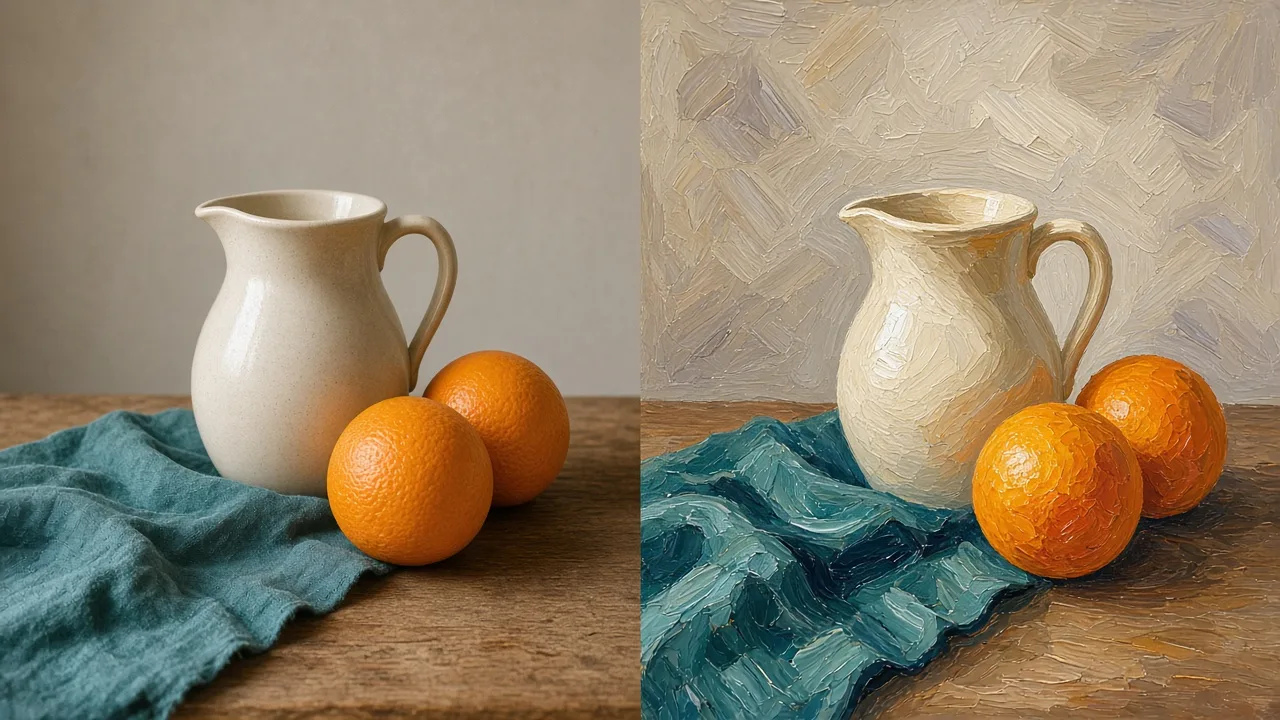
Example of the side-by-side view: a photo and a painted study of the same still life. This pair is not a result from the tool.
Compare two photos in your browser
Choose two JPG, PNG, or WebP images, up to 20 MB each. Side by side works as soon as a photo is open. Overlay turns on after both photos are open. Use the zoom buttons or the mouse wheel to enlarge up to 5×, then drag to move around.
Which view to use
Both views keep the original colors. The page does not mark differences for you.
See both photos at once
Each photo stays in its own frame and keeps its proportions. Nothing is cropped. Use this view to choose between two crops, or to see whether a study still has the same large shapes as the photo. Different widths and heights are fine.
Slide one photo over the other
Photo 1 covers photo 2. Drag the divider, or press the left and right arrow keys, to reveal more of either photo. Home and End jump to either edge. A jump in an edge, a shadow, or a color is the mismatch to check. This view is useful when both photos show the same subject at a similar size. If the crop or proportions differ, the photos will not line up.
Look closer
The zoom buttons and the mouse wheel enlarge the current view up to 5×. After you zoom in, drag to move. Fit returns the photo to the frame. Zoom is for a small shape, such as an eye, a hand, or a horizon line. It does not measure distance.
How to compare photos
Add two photos
Choose a JPG, PNG, or WebP image under 20 MB for each slot. You can drop a file, replace either photo, or clear both and start again.
Choose a comparison view
Stay on Side by side, or switch to Overlay once both photos are open. In Overlay, drag the round handle across the photos.
Inspect the details
Zoom in, then drag the enlarged photo. Decide whether a shape, a value, or a color needs to change before you continue the artwork.
What to look for
Use the view that matches the pair of photos you have. Then decide what to change, or which photo to keep.
Two crops of one scene
You have two crops and need to pick a painting reference. Use Side by side. Keep the crop where the subject is large enough and the light shapes are the ones you want to paint. Different photo sizes do not matter here.
A color study beside the photo
You have the source photo and a color study of it. Use Overlay when the framing matches, and Side by side when it does not. Look for a shadow that became too light, or a color area that grew past the shape in the photo. Correct that shape before you add detail. This page does not choose pigments for you.
A sketch beside the source photo
You photographed a sketch and want it next to the source. Use Overlay and move the divider across an edge. Where the edge jumps, the proportion is off. Adjust the drawing. The tool does not rotate or line the photos up for you.
What this comparison will not do
- It compares two photos only. It does not highlight, count, or score differences.
- It does not rotate, crop, or align the photos. Match the framing yourself before you use Overlay.
- It accepts JPG, PNG, and WebP files up to 20 MB each. Other formats, including HEIC and GIF, are declined with one message, and you can choose a different file.
- It does not save or download a comparison. Reloading or leaving the page clears both photos.
- A file that cannot be opened shows one error. Remove it or choose another image and try again.
When you have chosen a reference, Tonal Values turns that one photo into a light-and-shadow study. Color Simplifier reduces one photo to flat color shapes. Both are separate tools.
Compare Photos FAQ

Ready to compare your references?
Open two photos and use the view that makes the mismatch easy to see.
Compare two photos