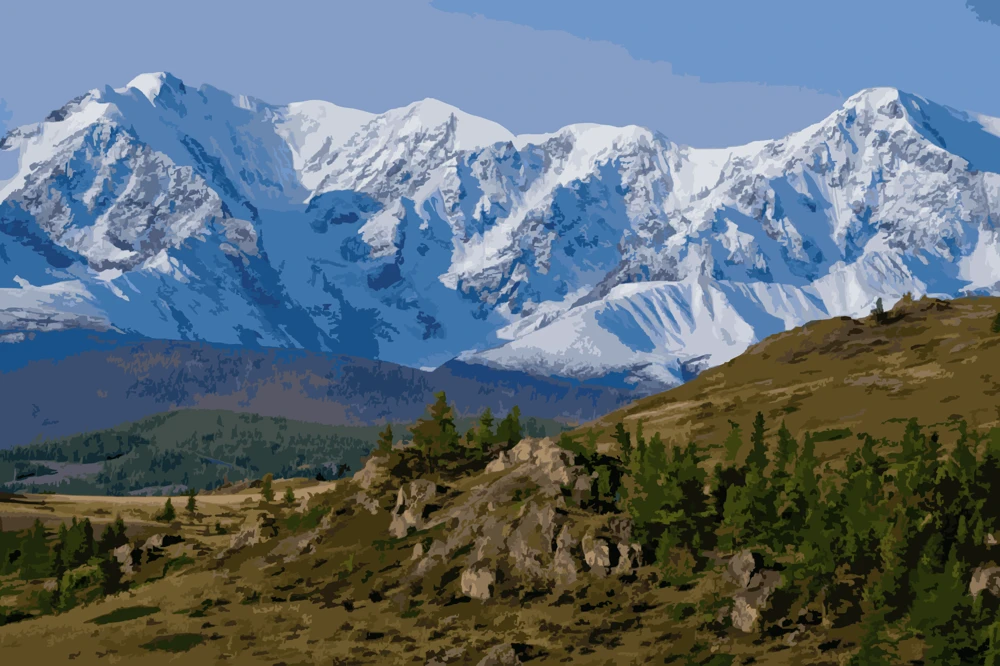
Landscape
For a simple landscape, start at 12 colors, a 2% detail filter, and smoothing 20. Sky, land, and the main shadow stay separate, and small branches drop out.
A color simplifier groups similar colors in a photo into a small set of flat shapes, then removes specks and fine texture so the main masses are easy to see.
Turn a busy photo into a clean painting reference with fewer, flatter colors. Adjust the palette, remove tiny details, and smooth noisy areas until the main shapes stand out.
Upload a JPG, PNG, or WebP image, preview the result, then download or print a PNG. No subscription or credits are needed.
Choose a photo and adjust three settings. The preview updates automatically.

Color simplification groups similar pixels into a palette you choose, from 2 to 100 colors. The detail filter then removes regions that are too small to paint. Smoothing blends fine texture before those colors are chosen, so the remaining shapes stay broad instead of speckled.
Painters use the result to see the big masses before mixing paint. Students use it for a limited-palette study. Designers use it when a photo should read as flat color shapes. The downloaded file is still a picture: this tool does not draw outlines or assign numbers to regions. A clear subject with a few large areas of light and shadow simplifies cleanly. Skin can separate into patches, lettering and fine foliage often turn into noise, and a very dark photo usually needs fewer colors so the shadows stay together.
When a project needs a numbered template, use the Photo to paint by numbers.
Three controls decide how much of the photo survives. These ranges are starting points. Adjust them while you watch the preview.
The Colors control sets the size of the palette, from 2 to 100. Fewer colors keep only the largest masses. Portraits and pets usually need more colors than a simple landscape, because small shifts in skin and fur disappear when the palette drops below about 16 colors.
The detail filter measures each color region as a share of the image and removes the ones that are too small. Raise it when specks, bright highlights, and background clutter remain. Leave it near 1% when those small marks belong to the subject.
Smoothing blends fine texture before the colors are reduced. Higher values turn leaves, fabric, and hair into broader shapes. Leave it at 0 when you want the edges in the photo to stay crisp.
| Subject | Colors | Detail filter | Smoothing |
|---|---|---|---|
| Simple landscape or still life | 8–12 | 2–5% | 20–40 |
| Portrait or pet | 16–24 | 1–2% | 10–25 |
| Busy city or foliage | 24–40 | 0–1% | 0–15 |
| Two-value shape plan | 2–4 | 5–10% | 40–70 |
These are starting points for a photo like the one shown. Upload your own picture and adjust from there.
For a simple landscape, start at 12 colors, a 2% detail filter, and smoothing 20. Sky, land, and the main shadow stay separate, and small branches drop out.
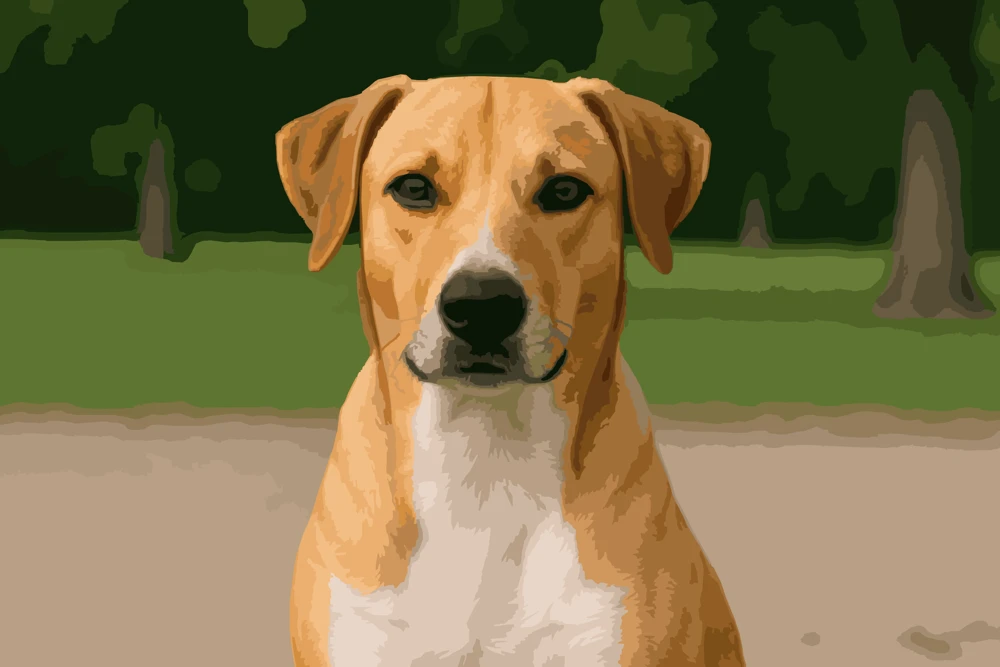
For a pet, start at 20 colors, a 1% detail filter, and smoothing 15. Fur and markings need more colors than a landscape, and a light detail filter keeps the eyes and nose.
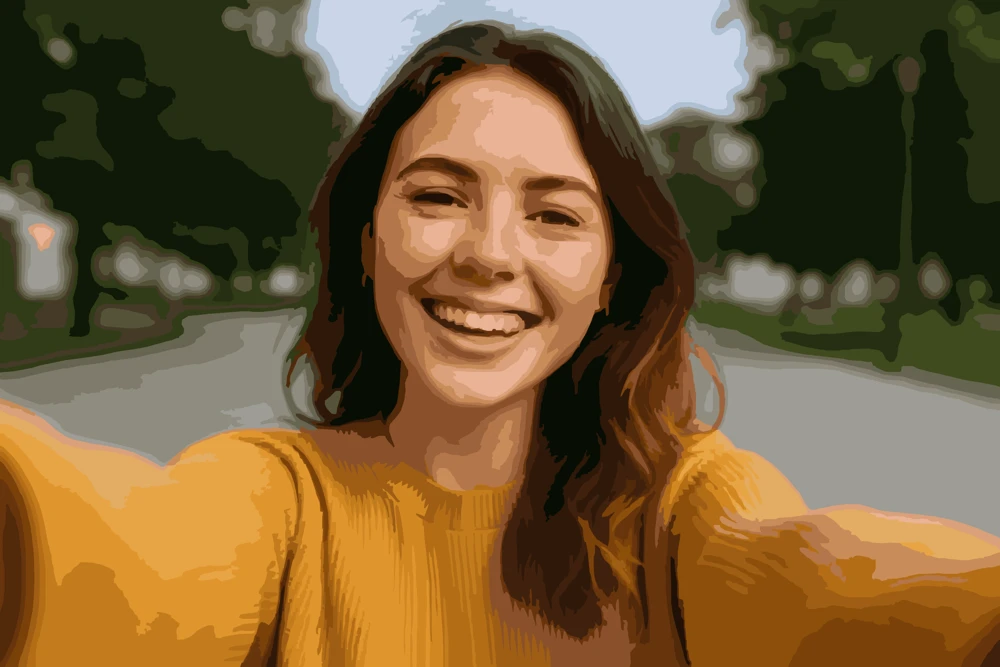
For a portrait, start at 18 colors, a 1% detail filter, and smoothing 15. Keep smoothing modest so the face stays in separate shapes, and raise the detail filter only if background clutter remains.
A simplified reference helps you plan a painting before getting lost in texture and tiny details.
See the main color masses at a glance and decide where light, shadow, and focal points belong.
Reduce a complicated photograph to a manageable palette for practice, sketching, or design.
Add a reference grid, then download or print the simplified image to work from offline.
Upload a JPG, PNG, or WebP image of up to 20 MB.
Choose the number of colors, remove small regions, and smooth fine texture.
Compare the result with your original, add a grid if needed, and save a PNG.
Ready to simplify your next reference?
Simplify a Photo