


Updated AI Filters: A New Photo Workspace and Easier Style Selection
We’ve updated AI Filters in Mimi Panda to make uploading photos, comparing artistic styles, and choosing an effect easier. The redesigned form brings larger style previews, search, and category filters into one workspace. We’ve also revised the instructions that guide how AI applies each style.
Your Photo and Style Choices, Side by Side
On desktop, the form now uses the available page width, with your uploaded photo on the left and a gallery of styles on the right. You can review your image while exploring the available effects.
Choose a file or drag it into the upload area. Supported formats include JPG, PNG, WebP, and HEIC/HEIF, with a maximum file size of 20 MB.
On phones and tablets, the workspace adapts to the screen, placing the upload area above the style gallery.
Larger Previews for Comparing Styles
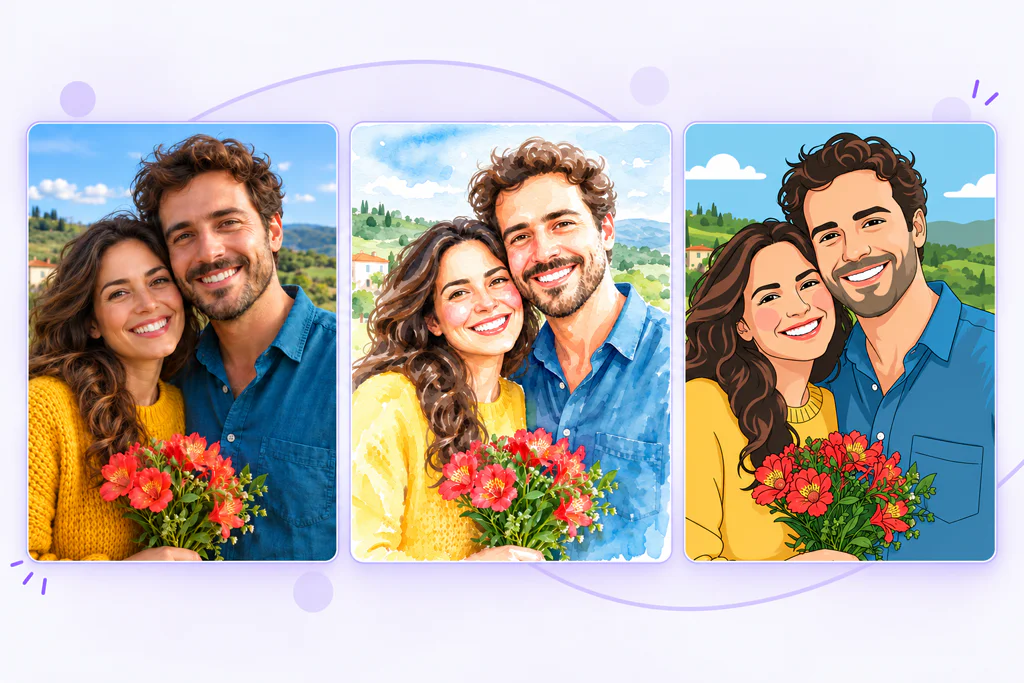
Styles in the Painting category and Vector General now include visual examples and appear first in the gallery. You can compare watercolor, oil painting, gouache, vector illustration, and other treatments before making your choice.
Every example uses the same sample photograph, making differences in color, texture, outlines, and detail easier to see. Your selected style will be applied to your own uploaded image when you start processing.
A selection marker and a summary of your chosen style help you check your choice before continuing.
Find Styles with Search and Categories
AI Filters offers hundreds of styles. You can now narrow the gallery by category or search for a style by name.
Whether you’re exploring painting, photography, illustration, drawing, or 3D effects, category filters help you focus on the options that interest you.
Revised AI Instructions for Every Style
Alongside the new interface, we reviewed the instructions behind every available style. We clarified the intended materials, techniques, color treatment, and background handling.
For example, watercolor instructions describe transparent washes and paper texture, gouache emphasizes opaque matte colors, and Vector General calls for filled, full-color 2D shapes. Outline drawings, silhouettes, and monochrome techniques have their own requirements.
These changes aim to help AI distinguish between similar styles and better reflect the characteristics of the selected treatment.
Try the Updated AI Filters
- Open AI Filters in your Mimi Panda account.
- Upload a photo.
- Browse the previews, search by name, or choose a category.
- Check your selected style and the credit cost.
- Click Apply style.
Explore different artistic directions and find the treatment that suits your photo.

